SchoolIDCards.in / School tools and guides
Resize Student Photos to 100×120 Pixels, 15–20 KB
Prepare up to 50 student photos with the existing free batch crop, JPEG resize and ZIP download tool.
Open Free Photo ToolBatch photo crop and resize
The free batch photo tool prepares student photographs at 100 pixels wide by 120 pixels high. Its JPEG output targets 15–20 KB per photograph. Add up to 50 photographs, process the batch and download the prepared files in one ZIP. The photo tool does not require school login or registration.
Check the requested dimensions
100×120 pixels describes image dimensions; 15–20 KB describes file size. These are separate requirements. Use this preset when it matches the instructions supplied by your school or examination board. Different forms can request different sizes, so confirm the current specification before uploading the resulting files to another service.
Prepare and review a batch
Choose clear original photographs with enough space around the face. Open the tool and select the images. You can add photographs again until the batch reaches the supported limit. Review the output, especially head position and the crop around the hair and chin. Download the ZIP and extract it before selecting individual files for an application or school record.
Image quality and file size
A very small or blurred original cannot recover detail merely by resizing. JPEG compression may change fine texture, and automatic cropping should be checked for every student. Verify the saved image dimensions and file size using file properties or an image viewer. Keep the original photographs separately so you can repeat the preparation if a different format is required.
Common questions
The output uses a portrait 100×120 pixel preset; it is not the same as 120×100. A ZIP is a container for the batch, not the image format to upload into a form. If an application rejects a photograph, check its exact dimensions, format and size instructions before repeating the upload.
Related tools and guides
Scan sheet and roll-number workflow
Download the A4 signature sheet (PDF) · Download the A4 photo sheet (PNG)
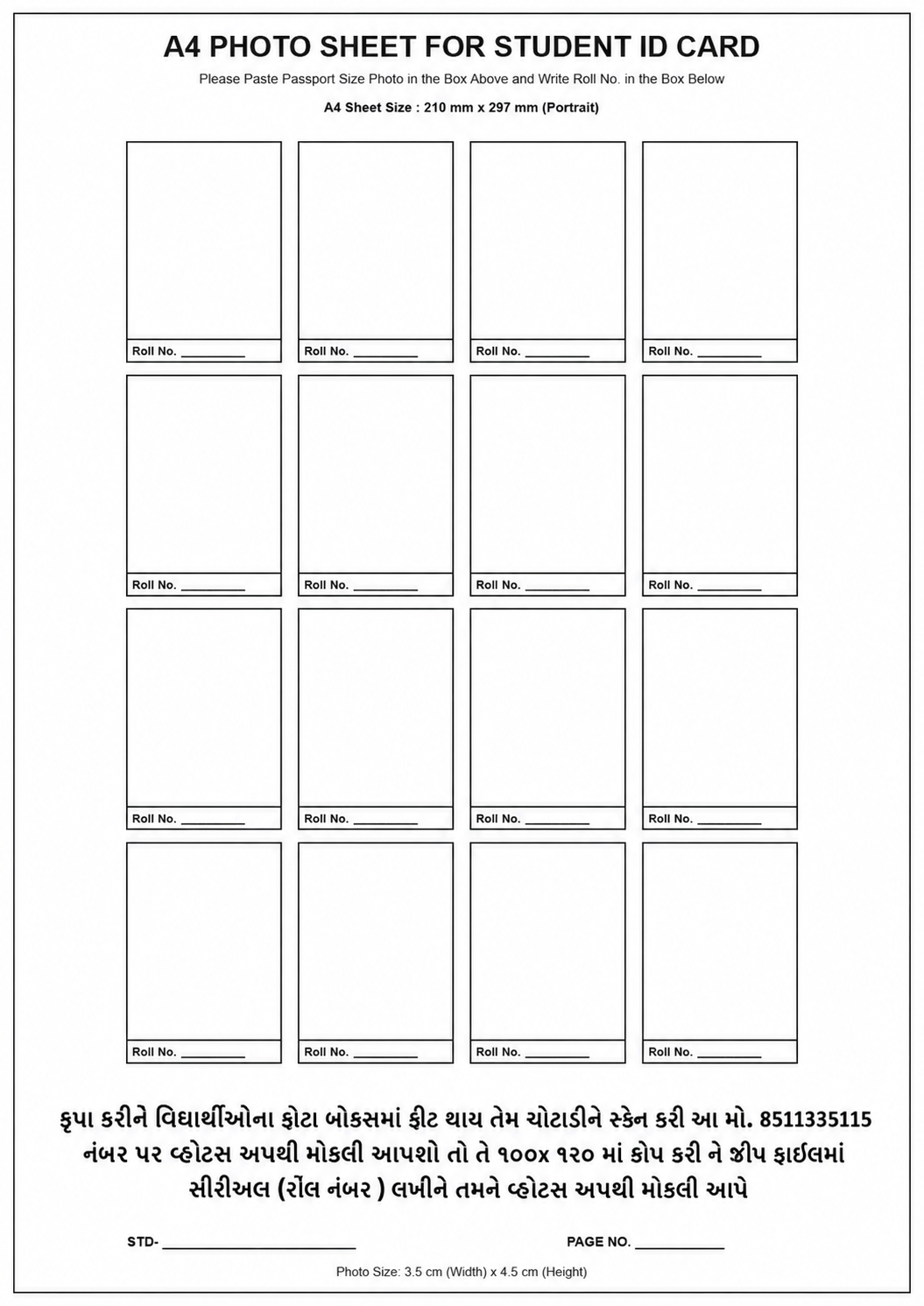
These printable sheets are separate from the online batch-photo tool. Follow the instructions printed on the selected sheet. Keep roll numbers readable; paste photos inside their boxes and scan the full page flat, with all edges visible. Keep every student's original position, including empty boxes, so numbering does not shift.
ફોટા બોક્સની અંદર ચોટાડો અને રોલ નંબર વાંચી શકાય તેમ આખું પાનું સ્કેન કરો. કોઈ વિદ્યાર્થીનો ફોટો ન હોય તો તેની જગ્યા ખાલી રાખો; આગળના વિદ્યાર્થીઓનો ક્રમ બદલશો નહીં. ફાઇલ મોકલતાં પહેલાં નંબર અને ફોટાનો મેળ તપાસો.
Check a small batch first
- Try two fictional or authorised sample photos.
- Download the ZIP and extract it.
- Open each image and check that the face, hair and chin are fully visible.
- Inspect width and height in file properties. 100×120 means width 100, height 120.
- Check the saved JPEG size against the receiving form's current requirement.
Automatic crop placement and target file size do not guarantee acceptance by every examination portal. If the recipient requests 120×100, use a tool or service for that exact width/height instead of assuming the two orientations are interchangeable.